TizenTube
Watch Ad-Free YouTube on Firestick, Android TV and Samsung Smart TVs
TizenTube is a free, open-source YouTube client with ad block, SponsorBlock and DeArrow. Learn how to install the APK on Fire TV, Android TV and Samsung.

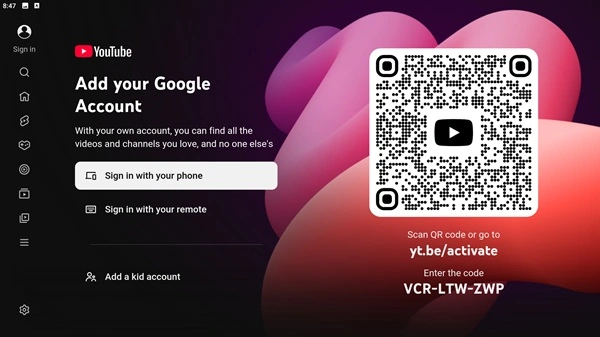

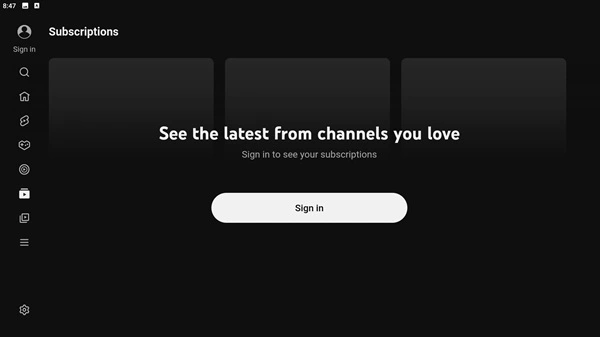
What Is TizenTube?
TizenTube is a free, open-source, third-party YouTube client designed mainly for smart TVs and streaming devices. It is built for performance and simplicity, and it lets you watch YouTube without ad interruptions. That makes it a popular alternative to the official YouTube app.
The official YouTube app on TV often shows frequent ads and offers little customization. TizenTube keeps the familiar YouTube layout but adds features that give you more comfort and control while watching.
It was first developed for Tizen OS, the system used on Samsung smart TVs. Since then, adapted versions have brought it to Firestick, Android TV and other popular streaming devices.
Download TizenTube APK
Get the TizenTube Cobalt APK for Fire TV, Android TV and Google TV. Samsung TV users do not need an APK and should follow the TizenBrew steps further down.
| App name | TizenTube (Cobalt) |
| Version | 2.11 |
| File size | 92.7 |
| File type | .apk |
| Works on | Fire TV, Android TV, Google TV |
| Project | Open source (by reisxd) |
| Price | Free |
Always install the latest release and delete the APK file after installing. TizenTube is an unofficial project and is not affiliated with Google or YouTube. On a Samsung TV, use the TizenBrew steps instead of the APK.
How TizenTube Works (Tizen, Cobalt and Standalone)
Most guides skip this part, and it explains why there is more than one download. TizenTube is not a separate video platform. It loads the YouTube TV experience (the interface built on YouTube's Cobalt browser) and injects a userscript that adds ad blocking, SponsorBlock, DeArrow and the other features.
- TizenTube Cobalt: the version for Android TV, Google TV and Fire TV. You install it as an APK file. It includes a built-in updater.
- TizenTube Standalone: the version for Samsung TVs. It was originally delivered through TizenBrew as a module. The developer later released a standalone build that no longer depends on TizenBrew to run, and it is described as faster and more stable. You still install it using the TizenBrew guide, by choosing "Install from GitHub" and entering the project's repository.
If you are unsure which one you need, the rule is simple: Samsung TV means Standalone, and everything else means Cobalt.
Why TizenTube Is Gaining Popularity
Demand for uninterrupted streaming has pushed many people to look for alternatives to the standard YouTube app. TizenTube has attracted attention because it removes one of the biggest frustrations, ads, while keeping the experience people already know.
Its open-source nature is another reason. Because the community can contribute, the app keeps evolving with what users ask for. Open development also brings transparency, flexibility and frequent updates, which closed platforms rarely match.
The app is also optimized for large-screen viewing. Smooth navigation, fast performance and better playback controls make it a good fit for the TV experience.
Key Features of TizenTube
Ad blocking, sponsor skipping, cleaner titles and thumbnails, and more control over how you watch.
Ad-Free Streaming Experience
TizenTube blocks advertisements so videos play without pre-roll or mid-roll interruptions. Content plays continuously, which makes long viewing sessions far more comfortable.
SponsorBlock Integration
TizenTube supports SponsorBlock, a community-driven database of timestamps for sponsor segments. When a video has sponsor segments, the app skips them automatically. This saves time and improves the viewing experience.
Custom Playback Controls
You get advanced playback options, including video speed control and the ability to skip specific segments. Playback speed settings let you decide how fast you want to consume a video.
DeArrow Support
DeArrow replaces clickbait titles and misleading thumbnails with community-submitted alternatives. This helps you choose what to watch based on what a video actually contains.
Customizable Interface
The interface supports custom themes and color options, from dark modes to color adjustments, so you can set it up the way you like.
Auto Frame Rate and Other Newer Additions
The Cobalt build has added features beyond the original list. Auto Frame Rate can be turned on in TizenTube Settings under Video Player Settings. It matches the display's refresh rate to the video, which helps with smoother motion on supported TVs. Recent releases have also added casting support on the Standalone build and an in-app updater on Cobalt.
Multi-Device Compatibility
TizenTube started on Tizen OS but is now widely used on Firestick, Android TV and Google TV devices. It runs on a range of hardware, including low-powered streaming sticks, and performance stays consistent.
Which Devices Does TizenTube Support?
The installation guide below works on the following devices.
| Device type | Version to use | Install method |
|---|---|---|
| Fire TV Stick 4K, 4K Max, Lite | TizenTube Cobalt (APK) | Downloader app |
| Google TV Streamer, onn 4K Pro | TizenTube Cobalt (APK) | Downloader app |
| NVIDIA SHIELD and other Android TV devices | TizenTube Cobalt (APK) | Downloader app |
| Samsung smart TVs (Tizen OS) | TizenTube Standalone | TizenBrew, then "Install from GitHub" |
How to Install TizenTube on Firestick and Android TV
These steps work on Fire TV Stick 4K, 4K Max, Lite, Google TV Streamer, NVIDIA SHIELD, onn 4K Pro and all Android TV devices.
-
1
Install the Downloader app
Install the Downloader app from the Amazon App Store (Firestick) or the Google Play Store (Android TV).
https://tizentubeapp.com/images/tizentube-download.webp -
2
Enable Unknown Sources
Go to Settings → My Fire TV (or Device Preferences) → Developer Options and allow Unknown Sources for the Downloader app.
Add screenshot for step 2 -
3
Open Downloader
Open the Downloader app and select the URL / Code box.
Add screenshot for step 3 -
4
Enter the code 250931
Type the code 250931 and press Go. This is the TROYPOINT Toolbox Downloader code.
Add screenshot for step 4 -
5
Find TizenTube
In the TROYPOINT Toolbox, scroll down to TizenTube and select Download.
Add screenshot for step 5 -
6
Install
When prompted, click Install to begin installing the TizenTube APK.
Add screenshot for step 6 -
7
Finish
When installation completes, choose Done.
Add screenshot for step 7 -
8
Delete the installer
Select Delete to remove the APK file.
Add screenshot for step 8 -
9
Confirm
Click Delete again to fully remove the installation file from storage.
Add screenshot for step 9 -
10
Launch the app
Return to your Apps list, find TizenTube and open it. Installation is complete.
Add screenshot for step 10
How to Install TizenTube on a Samsung Smart TV
The Downloader method above does not apply to Samsung TVs, which run Tizen OS rather than Android. The general process looks like this.
-
1
Install TizenBrew
Install TizenBrew on your TV by following its official guide. This requires turning on Developer Mode on the TV.
Add screenshot for step 1 -
2
Choose Install from GitHub
In TizenBrew, choose Install from GitHub.
Add screenshot for step 2 -
3
Enter the repository
Enter the TizenTube repository name as the project's instructions specify.
Add screenshot for step 3 -
4
Launch TizenTube
Launch TizenTube from the TizenBrew module manager (the green button on the remote opens the module manager).
Add screenshot for step 4
Because the steps for Developer Mode and TV IP settings differ between Samsung model years, follow the current TizenBrew guide for your exact TV. Note that if the Developer Mode host PC IP is set to 127.0.0.1, the Standalone app restarts itself to inject the userscript.
How to Set Up and Use TizenTube After Installation
Once installed, setting up TizenTube takes a few minutes.
-
1
Sign in
Launch TizenTube and sign in to your account to sync subscriptions, history and recommendations.
Add screenshot for step 1 -
2
Browse the home screen
The home screen has familiar sections such as recommended videos, trending content and subscriptions.
Add screenshot for step 2 -
3
Open TizenTube Settings
Open the settings menu and select TizenTube Settings to reach the advanced customization options.
Add screenshot for step 3 -
4
Turn on your features
Enable features such as Ad Block, SponsorBlock and skipping intro and outro segments for a smoother experience.
Add screenshot for step 4
TizenTube User Experience
The interface closely mirrors the official YouTube layout, so it feels familiar from the first launch. Home, subscriptions and recommendations are all present and easy to navigate with a TV remote.
The app also supports account sign-in, so your subscriptions and preferences sync and the experience stays personalized.
Is TizenTube Safe to Use?
TizenTube is open source, so its code can be reviewed and verified by the community. That transparency adds a layer of trust and helps you understand how the app works.
Standard scans of the installation files typically show no issues. Even so, follow basic safety practices:
- Download only from trusted sources, ideally the developer's official GitHub releases.
- Turn Unknown Sources back off for Downloader once you finish installing.
- Delete the APK installer after installation, as the steps above show.
- Be careful about signing in with your main Google account on any third-party client. If this concerns you, consider using a secondary account.
- Keep the app updated so you get bug fixes.
TizenTube vs Other YouTube Clients
Compared with other alternative clients, TizenTube balances simplicity with advanced features. Its mix of SponsorBlock, DeArrow and ad removal is a clear advantage over many competitors, and its familiar interface keeps the learning curve low for new users.
| Feature | TizenTube | Official YouTube app | SmartTube |
|---|---|---|---|
| Cost | Free | Free (ads) or paid Premium | Free |
| Open source | Yes | No | Yes |
| Ads | Blocked | Shown unless Premium | Blocked |
| SponsorBlock | Yes | No | Yes |
| DeArrow | Yes | No | Varies by version |
| Samsung (Tizen) TV support | Yes | Yes | No |
| Fire TV / Android TV | Yes | Yes | Yes |
| Interface | Familiar YouTube layout | Official layout | Custom layout |
| Support from Google | None (unofficial) | Full | None (unofficial) |
Check each project's current release notes, since features change between versions.
How to choose: TizenTube is the natural pick if you own a Samsung TV, since few alternatives exist there, or if you prefer an interface that looks like the official app. On Android TV and Fire TV, SmartTube is another well-known option, so it is worth comparing the two. Choose the official app plus YouTube Premium if you want a fully supported, ad-free experience and are happy to pay for it.
Troubleshooting Common TizenTube Problems
App will not install
Confirm Unknown Sources is enabled for Downloader, check you have free storage, and make sure your Android version meets the current requirement.
Videos will not play or the app crashes
Update to the latest release. Cobalt has a built-in updater, so check it first. Clearing the app cache also helps.
Ads appear again
YouTube sometimes changes how ads are served. Update the app and make sure Ad Block is on in TizenTube Settings.
SponsorBlock is not skipping
Make sure the feature is enabled, and remember it only skips segments that the community has already submitted for that video.
Cannot find TizenTube in the toolbox
Use the official GitHub releases link instead.
Samsung TV problems
Re-check the Developer Mode and host IP steps in the TizenBrew guide, since they vary by TV model.
Frequently Asked Questions
Everything you need to know before installing TizenTube.
Why Choose TizenTube?
Cleaner viewing
Ads are blocked and sponsor segments are skipped, so videos play with fewer interruptions.
Faster, built for TV
Smooth remote navigation and fast performance on large screens.
More customizable
Themes, colors, playback speed and DeArrow let you shape how YouTube looks and behaves.
Open and free
Open-source code that the community can review, and no cost to use.
TizenTube suits anyone who wants a cleaner, faster and more customizable YouTube experience on a TV. By removing ads and adding advanced playback features, it changes how you interact with video content. If you want to improve your streaming setup, it offers a reliable and efficient option that goes beyond the limits of the official app.
Conclusion
TizenTube is becoming a preferred choice for people who want to enjoy YouTube without interruptions. Its ad-free environment, powerful features and smooth performance make it stand out among third-party YouTube clients.
If you want a better way to watch YouTube on Firestick or Android TV, TizenTube is worth trying. Download it from a trusted source, set up SponsorBlock and DeArrow, and keep it updated for the best results.
Last updated: